
Guidance Documents
- How to upload a guidance document to the Town Hall
- How to determine the applicability of a guidance document
- How to edit guidance document information and applicability
- How to delete a guidance document
- Your Annual List of Guidance Documents to be filed by the Town Hall
What is a guidance document?
How guidance documents are organized on the Town Hall
A guidance document can apply to an agency, board or an individual chapter. Therefore you will find a guidance document tab on the "View Agency", "View Board" and "View Chapter" pages. Once you've clicked on the guidance document tab, documents will be displayed sorted by Document ID. Document ID is an alpha/numeric field assigned by the agency (up to 20 characters). The agency can adopt whatever format or coding strategy they wish to order the documents. You can optionally sort the documents by their revision date or by their applicability by clicking on the column heading.
For those agencies with many guidance documents you can also click on a small graphic to pull down a search box so you
can enter a keyword or phrase and select only those matching guidance documents.

How to upload a guidance document onto Town Hall
- After signing in, use the drop down menu to go to My Agency Boards.
- Click on the Guidance Document tab.
- Click on the New Guidance Document link.
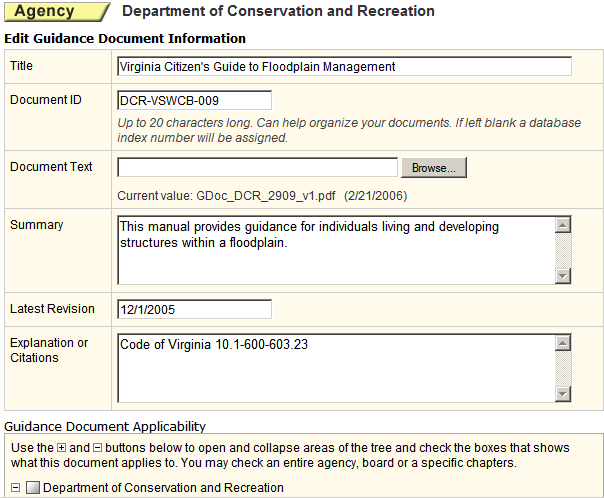
- Complete the form that appears on the screen (similar to that pictured below), including document applicability.
- In order to better organize your guidance documents, you may assign each document an identification #. Up to 20 characters or numbers may be used. However, no special characters other than the underscore, period, or dash may be used.
- For the document itself, click on the Browse button and select an Adobe PDF or Microsoft Word document from your system.
- For the "Latest Revision" date, please use the following format: 03/04/2004. The "Latest Revision" date defaults to today's date but may be changed manually.
- Under "Explanation or citations," indicate the Code of Virginia or federal law or regulation citation that provides the authority for the guidance document, if applicable.
- When finished, click "Save" at the bottom of the screen. You may be prompted to wait a few seconds while your document is converted to PDF. If this happens, please wait a few seconds and then click continue.
How to determine the applicability of a guidance document
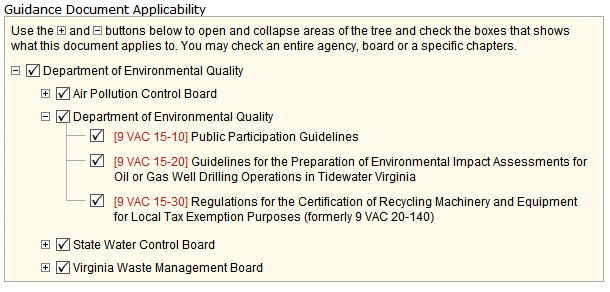
- This agency, in general, but not to a board or regulation;
- A particular board, more than one board of the agency, or all boards of your agency;
- One regulation of a board, more than one regulation of a board, or all regulations of a board.
Using the selection tree that appears for your agency, indicate the agency, board(s), and/or regulations that the guidance document applies to. The Guidance Document can apply to all boards, selected boards, or one or more selected chapters of a board.
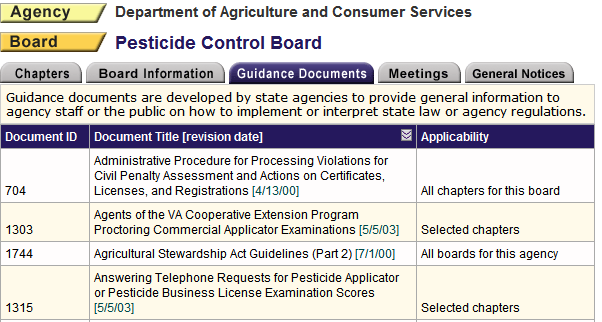
 Below is a list of guidance documents that shows all three levels of applicability:
(1) applying to all boards for an agency, and (2) applying to all chapters for a selected board
and (3) applying to just selected chapters within a board. You can sort the list on the screen
by just clicking on the column header. This list is currently sorted by title.
Below is a list of guidance documents that shows all three levels of applicability:
(1) applying to all boards for an agency, and (2) applying to all chapters for a selected board
and (3) applying to just selected chapters within a board. You can sort the list on the screen
by just clicking on the column header. This list is currently sorted by title.
How to edit guidance document information and applicability
- After signing in, use the drop down menu to go to My Agency Boards.
- Click on the Guidance Document tab.
- You will see a list of all guidance documents. Click on the guidance document you wish to edit.
- Click on Edit Document. Make changes as appropriate.
- When finished, click Save at the bottom the screen.
How to delete a guidance document
- After signing in, use the drop down menu to go to My Agency Boards.
- Click on the Guidance Document tab.
- You will see a list of all guidance documents. Click on the guidance document you wish to delete.
- Click on Edit Document.
- Go to bottom of the screen and click the Delete button. You will get a prompt asking you to confirm that you wish to delete the document.
Your Annual List of Guidance Documents to be filed by the Town Hall
No later than December of each year, all of your agency's guidance documents (which are available in an electronic format)
must be uploaded on the Town Hall website. In addition, Town Hall will automatically send a list of your agency’s
guidance documents to the Registrar on or about December 31 of each year.
The requirement that all guidance documents be loaded on the Town Hall is contained in
Executive Order 17 (2014).
Specifically, it states that:
To avoid double posting of guidance documents:
Guidance documents can be displayed on Town Hall as well as on the agency's own website without having to upload these documents separately on each site. To eliminate the need for double posting, we recommend that agencies post their guidance documents on Town Hall and then have the guidance document links on their own website point to the Town Hall. Be sure to point your agency website link to the Guidance Document Information page on Town Hall, e.g., http://townhall.virginia.gov/L/ViewGDoc.cfm?gdid=873. Do not point the link on your agency website to the guidance document itself, e.g., http://townhall.virginia.gov/L/GetFile.cfm?File=C:\TownHall\docroot\GuidanceDocs\262\GDoc_DRS_873_v1.pdf, because the URL will change whenever you update the Town Hall with a more recent version of the guidance doc., …v2.pdf, …v3.pdf.
Important notes on uploading guidance documents:A. Make sure all your guidance documents are loaded on the Town Hall. Note: Where an electronic version of the guidance document is not yet available, instead of uploading the guidance document on the Town Hall, please upload a Word document that lists the name and contact information for the person at your agency who may be contacted in order to obtain a copy.
B. Ensure that the most recent version of each guidance document has been uploaded on the Town Hall.
C. Check your list of guidance documents against your list of guidance documents on the Registrar’s website to ensure your list is complete.
Make sure you have completed/updated the introductory paragraph for your guidance document filing that is required by the Registrar’s office:
Follow these steps:
Step 1: From the agency functions drop down list, choose “My Agency Boards.”
Step 2: Click on the "Edit agency" link.
Step 3: Include the following information (in narrative form) in the text box:
a. Name, address, and telephone number of the staff person(s) to contact for obtaining copies.
b. Name, address, and telephone number of the staff person(s) to contact for asking interpretive or implementation questions.
c. State that (most/all) your guidance documents are available electronically for no charge on the Town Hall.
d. Location for viewing printed copies of your guidance documents.
e. Costs associated with obtaining printed copies of these documents from the agency. If there is no charge, so indicate. If the cost varies depending on the document, so indicate.
f. Any other information that you think would be helpful to the public.
Step 4: Click on the "Save" button. You’re done!